

March and April 2026 gave SharePoint and Teams users document generation from forms in preview, a new multi-account collaboration flow, automatic removal of location data from shared images, and a rebuilt Workflows app with AI templates.
Structured document generation with forms now in preview
Microsoft has opened a preview of structured document generation with forms in Microsoft 365. You create a document template in Word, attach it to a form, and when an employee fills out the form, a finished document is generated with the right structure and fields.
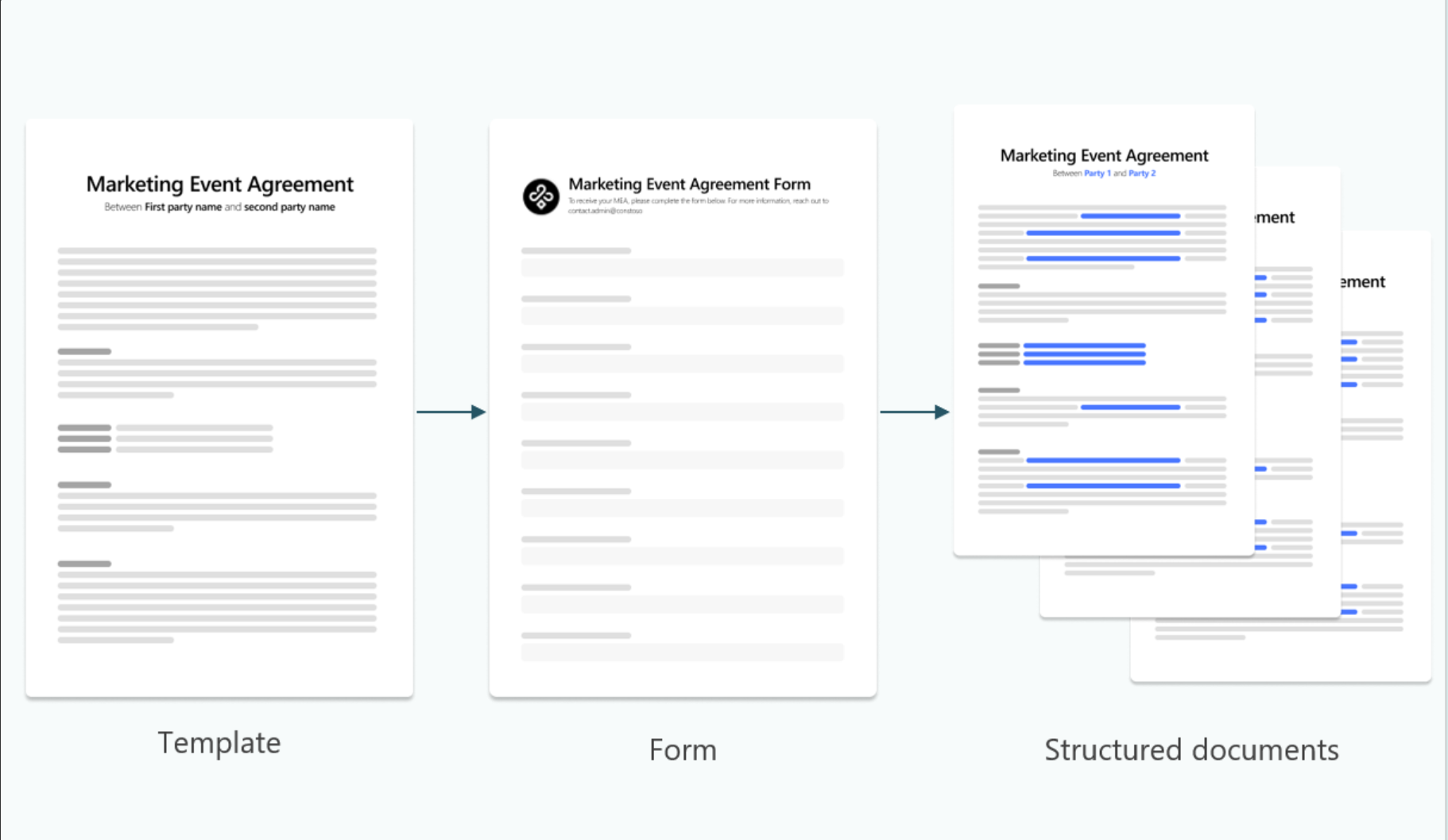
Common use cases include offer letters and onboarding documents for HR, legal agreements and audit reports, and operations reports that follow a fixed structure. Documents are stored in SharePoint and native in Word. Building templates and workflows requires a Microsoft 365 Copilot license, but generating a document from a finished template does not.
Read more on Microsoft Tech Community
AI in SharePoint strengthens the knowledge layer for Copilot
Microsoft’s SharePoint showcase for March covers four AI capabilities that affect how well Copilot and agents respond. The premise is straightforward: answer quality depends on the quality of the content being used as grounding.
SharePoint can now identify stale pages, broken links, and content gaps, and suggest actions to site owners. Metadata in document libraries is extracted automatically, making filtering and search more accurate. An admin agent answers natural-language questions about inactive sites, storage levels, and permissions, and recommends cleanup actions. Inside document libraries, AI organizes files and suggests structural improvements based on how the library is used.
Read more on Microsoft Tech Community
Cross-organization collaboration and multi-account management in Teams
Teams now consolidates notifications from all accounts and organizations a user belongs to into one activity feed. Users can respond to messages without switching accounts and pin key organizations to the sidebar. Administrators get a new overview page in the Teams admin center with unified control over external collaboration settings.
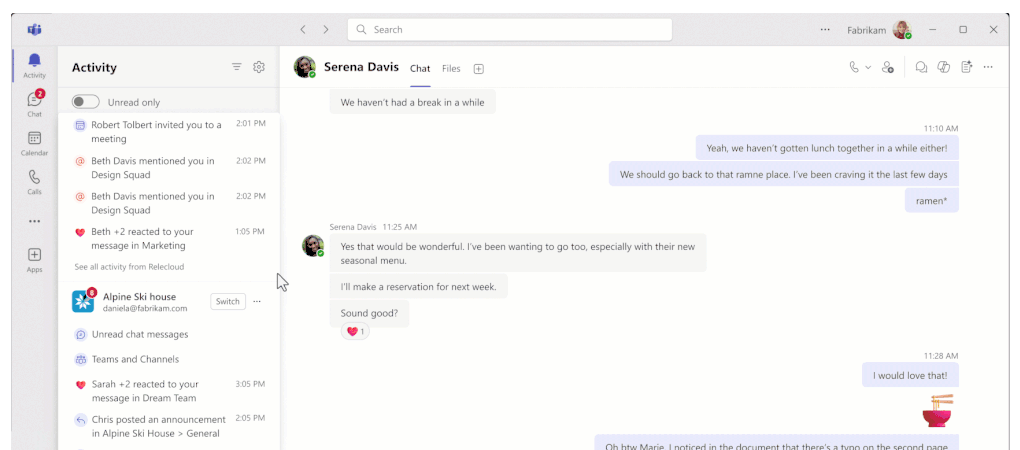 Image: Microsoft
Files and Loop components can now be shared with external participants in chats. Teams handles permissions automatically so everyone can view, edit, and upload content. Admin configuration is required.
Photos are stripped of location data before sending
When you take a photo on your phone, the image file quietly stores extra information: where the photo was taken, when, and on which device. This is called EXIF data, and most people never see it, but it travels with the image whenever it is shared.
Teams now removes this information automatically before a photo reaches the recipient. Nothing needs to be configured. This matters most for organisations that handle sensitive cases, work in the field, or have staff sending photos from client sites or home visits.
Workflows app rebuilt with AI templates
The Workflows app has a new interface. Without code, users can set up flows for status updates from teammates, document approvals when files change, or Planner tasks created directly from messages. New AI-powered templates let users automate work with Copilot or a channel’s agent. A Copilot license is required for the AI workflows.
Meetings and chat improvements
Annotations on single shared windows during meetings are now available on Windows, macOS, and mobile. Presentations and training sessions can be run with markup tools directly on the shared content without exposing the entire desktop. Audio Recap now supports seven additional languages: Chinese, French, German, Italian, Japanese, Portuguese, and Spanish.
Other chat improvements include a combined drafts view for unfinished messages, SHIFT + ESC to mark everything as read, and an option to control whether Enter sends or creates a new line.
Read more on Microsoft Tech Community